Bulk File Export
The Bulk File Export feature allows users to export case file attachments across multiple cases. Files can be exported into either a single folder or grouped by Case Number.
In certain use cases, Bulk File Export supports requirements that may arise in the normal course of business. In particular, the feature allows a permissioned user to:
Export file attachments without including case details. This facilitates an additional layer of data privacy by limiting the inclusion of information related to the dispute case.
Export attachments for cases that are not yet resolved. This provides access to case attachments while the case is still under investigation and the Case Audit Export feature is not yet available.
Administration Guide
Who Can Use this Feature?
Management and use of this feature is available to all users with an Administrator license, by default. Users with a Standard license who have been granted Bulk File Export site rights also have access to this feature.
Where Is It Set Up?
To access the page, click on the vertical sidebar menu. Then go to → .
Bulk File Export Helpful Tips
Bulk File Export - Filtering Results
The page offers Advanced Filters to refine the results list and make it easier to find a previously generated document.
To narrow down the results by one or more keywords, enter a search term in the Text Filter box above the results list. Click Enter.
Additionally, certain fields can be used to filter the results to just those Bulk File Exports that are relevant. Click  to select the field and values to filter the results by. Click Apply and repeat for additional fields as needed.
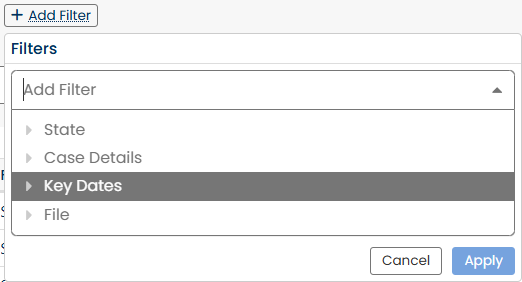
Export Files in Bulk
On the Bulk File Export screen, file attachments are displayed by Case Number (default view).
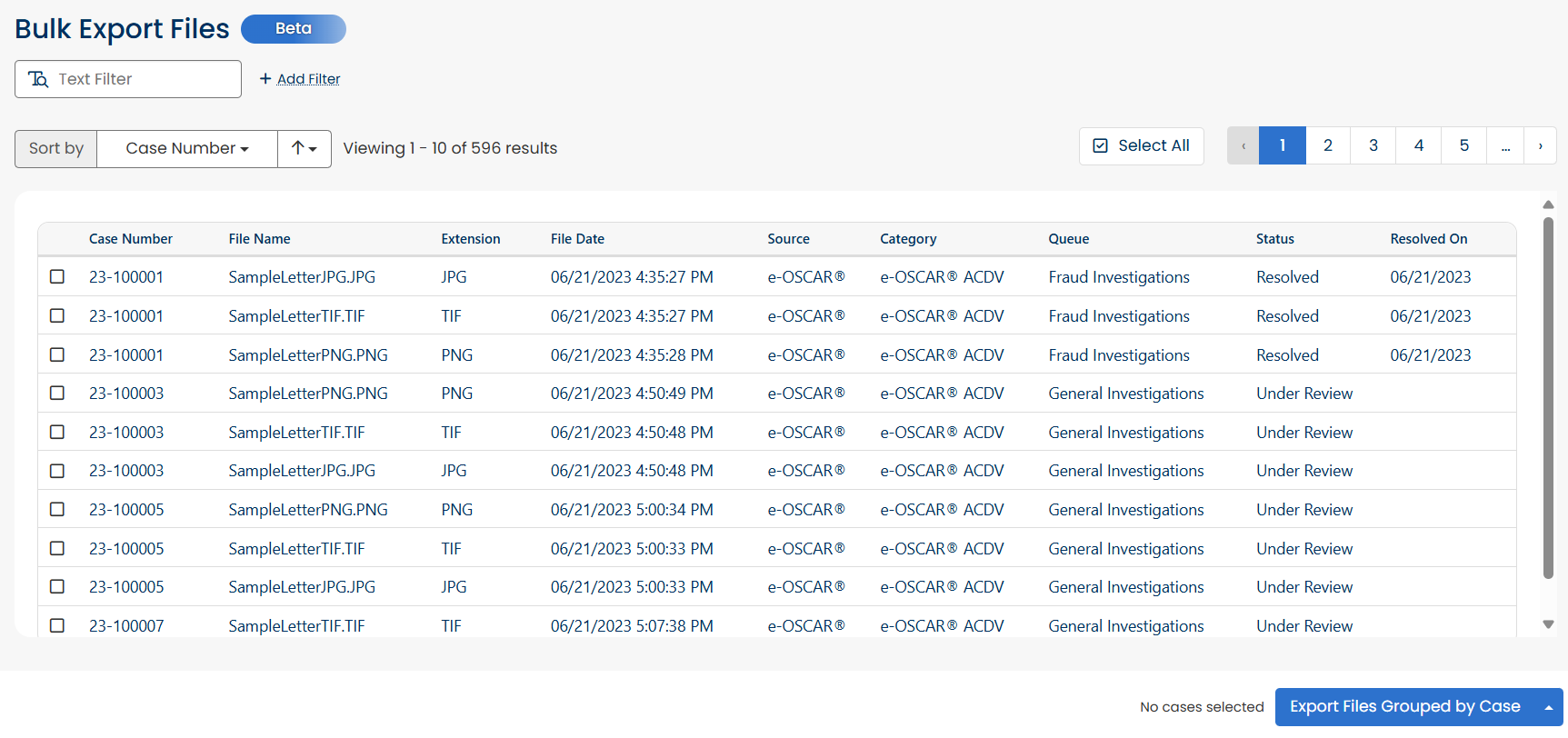
Refine the displayed list by applying filters based on:
File Name - Filters files by a specific attachment title to help locate individual documents more easily.
File Type - Filters files by their format type (e.g., PDF, TIF, JPEG and PNG).
File Date - Filters files based on their upload or received date. Useful for locating documents added within a specific time range.
File Source - Filters based on the origin of the file, such as e-OSCAR®, Checklist File, or Uploaded File.
Key Case Details - Filters based on case attributes such as Status, Category Number, Category, Queue, and Resolved On date.

Select the file(s) for export by checking the box on each row to be included. To select all files, click
 . To clear selections, use the
  button.
Once files are selected, the system displays a selection count message at the bottom-right of the screen.

To proceed with the export, choose how the files should be saved.
To export all selected attachments into a single folder (not grouped by case) click
 .
.To export the files grouped by case, click
 .
.
Note
The system remembers your last selected export method and displays it as the default option the next time you return to the screen.
Once exported, the files are downloaded as a ZIP folder containing all selected attachments according to the chosen export format.