Users with appropriate privileges can manage the field values presented to the end user when they are resolving a case. They can set up the appropriate values for the Findings, Root Cause, and Final Action fields.
Administration Guide
Who Can Use this Feature?
Management and use of this feature is available to all users with an Administrator license, by default. Users with a Standard license who have been granted Resolution States site rights also have access to this feature.
Where Is It Set Up?
To access the page, click on the vertical sidebar menu. Then go to → .
Key Terms
Findings
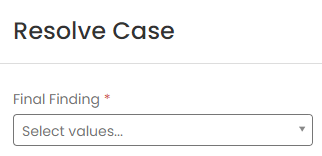
The Findings field represents the general conclusion reached from investigation of the case and corresponds to the Final Finding field on the screen or the final step of an Investigation Checklist with Allow Case Resolution enabled on the Content item.
Root Cause
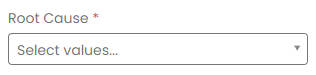
This field represents the primary reason or cause for the Findings and corresponds to the Root Cause field on the screen or the final step of an Investigation Checklist with Allow Case Resolution enabled on the Content item.
Final Action
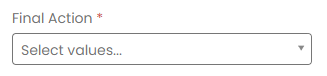
This field represents the last step taken as part of the investigation and corresponds to the Final Action field on the screen or the final step of an Investigation Checklist with Allow Case Resolution enabled on the Content item.
An example of an appropriate value for this field could be No Update Required or something similar that indicates whether or not an update to the account record was required.
Add Response Values
Click the
 icon in the column.
Type the value you want to add in the Option field.

Click anywhere outside of the Option field to trigger an auto-save of the typed value.
Repeat the process to continue adding values until finished.
Click the
icon in the column.Type the value you want to add in the Option field.
Click anywhere outside of the Option field to trigger an auto-save of the typed value.
Configure the Display Conditions for the Root Cause value.
If the new Root Cause value is relevant and appropriate to all of the defined Findings values, then it should always be available for selection by the Case Lead or team member resolving the case. In other words, regardless of the value chosen for the Findings field, this Root Cause value will be an available response option for filling in the Root Cause field.
In Case Central®, the Display Conditions setting drives whether or not a Root Cause value is offered as a valid response option during the Case Resolution process. By default, this setting is set to Always Show for a new Root Cause value.

Alternatively, the inclusion of any particular Root Cause value in the list of available response options can be made conditional, dependent upon the value selected for the Findings field. When the new Root Cause value is a relevant and appropriate selection for only some of the Findings options, the Display Conditions setting will need to be updated.
Click on the
 icon to open the panel. Select the Findings values that are relevant to the Root Cause value and should be included in the displayed list of response options.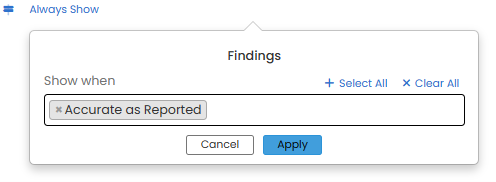
Click Apply.
Repeat the process to continue adding values until finished.