QA Review
Case Central® supports the option of incorporating Quality Assurance checks into the case investigation process. These QA Reviews are most commonly employed when:
A senior team member or manager needs to evaluate and approve a more junior team member's investigation findings and supporting documentation before a response is sent to e-OSCAR®.
Case Central's Auto-Resolution feature is being utilized, and a percentage of cases should continuously be evaluated to ensure the appropriateness and effectiveness of the configured Auto-Resolution Rules.
QA Review Function
The QA Review function is connected to Case Resolution. Whether a Case Lead is attempting to resolve a case on the page or in the final step of an Investigation Checklist, a QA Review will be initiated if the case has been selected for review.
Case selection is made automatically by Case Central® based on triggering logic defined in the QA Review Threshold Rules. These rules are configured to apply case- or user-specific criteria in determining whether a case should be picked for QA Review.
The QA Review process involves a back-and-forth between the QA Approver and the Case Lead. The QA Approver is a user who has been granted the QA Manager role for the associated Queue.
Administration Overview
QA Review Components
The QA Review function is set up by enabling and configuring several features within Case Central:
Queue Roles, specifically to grant select users the QA Manager role
QA Review Required Permissions
To set up and configure the settings related to the QA Review feature, users with a Standard license needs to have the following site-right permissions enabled:
QA Review Threshold Rules
System Preferences
Queues, or a designation as Queue Manager for the relevant queues
QA Review System Preferences
Case Central® offers two system settings to facilitate the QA Review process: Allow QA Review Quick Approve and Auto Resolve QA Approved Cases.
To set up QA Review System Preferences, navigate to the the page by clicking Settings on the vertical sidebar menu. Then go to → .
Allow QA Review Quick Approve
This setting exposes a bulk approval button on the screen that will approve all line-item updates with one click.
To enable the Approve All button for QA Review, click the
 icon to move the toggle switch to the right
  position.
Auto Resolve QA Approved Cases
This setting automates the resolution and closure of a case upon approval by the QA Reviewer, eliminating the need for the Case Lead to take manual action to resolve the case.
To automate case resolution upon QA Approval, click the
icon to move the toggle switch to the right position.
Note
The QA Review settings on the page are only applicable if QA Review Thresholds have been configured.
Helpful Tips
When a case is under QA Review, it cannot be edited or have actions performed against it other than returning it back to being Under Review.
If the Allow Case Resolution setting has been enabled on the last step of the Checklist, the case will automatically be resolved upon the QA Approver's approval. In that scenario, the Case Lead will not need to take any further action.
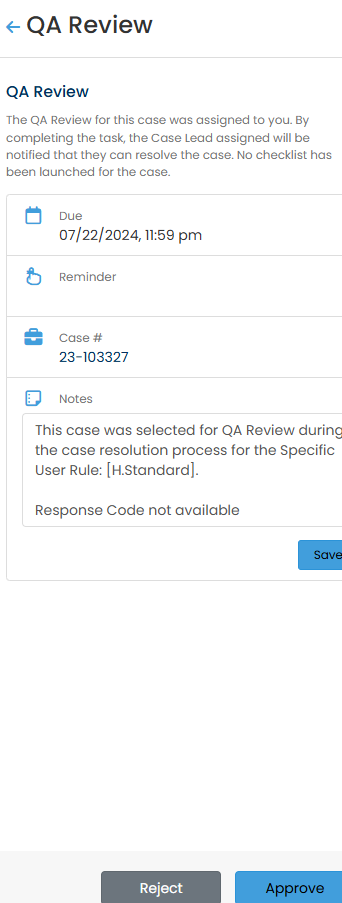
If the case being sent to QA Review does not have a Checklist that has been started, the QA Review To Do panel will have Reject and Approve buttons instead of the Initiate Review button.