Case Reassignment
Case Reassignment is a bulk action that allows an administrative user to assign multiple cases to a new Queue and/or a new Case Lead at the same time. This feature makes it easy to transfer case work to a different Case Lead if the current team member is no longer available, either temporarily or permanently. It also supports efficient reassociation of cases to queues if operational changes involve a reorganization of queues.
Administration Guide
Who Can Use this Feature?
Management and use of this feature is available to all users with an Administrator license, by default. Users with a Standard license who have been granted Bulk Actions site rights also have access to this feature.
Where Is It Set Up?
To access the Bulk Actions page, click on the vertical sidebar menu. Then go to → .
Key Terms
Assignment Types
Assignment Type is the designation for how the new Case Lead will be assigned. There are two assignment types:
Specific Assignee – allows the user to either chose a specific team member as the new Case Lead or leave the case unassigned
Auto-Assignment – selects the new Case Lead programmatically based on the Auto-Assignment Method chosen
Least Work will assign the case to the member of the queue who has the least work assigned to them at that time.
Random will assign cases to members of the queue in no particular order.
Round Robin will assign cases to queue members in succession, repeating the process until all of the selected cases have been reassigned.
Processing Statuses
The case records that are sent for bulk processing can be assigned one of three statuses:
Processed – the record was successfully updated
Skipped – the record was not updated because it no longer met the initial criteria set for the bulk activity
Errored – an issue was found with the record, and the update could not be processed
Helpful Tips
Case Inventory Permissions
When using Bulk Actions to do Case Reassignment, Standard license holders will only have the ability to take action on cases they are permitted to view. Each user's access to cases is defined by the scope selected for their Case Inventory user permission in conjunction with their Queue memberships.
Case Selection & Filtering Results
The page offers Advanced Filters to refine the results list and make it easier to find a particular case or set of cases. Upon loading, the results table displays the list of all cases with a Status of Under Review. By default, they are listed by Case Number in Ascending order.
To narrow down the results by one or more keywords, enter a Search term in the Text Filter box above the results list. Click Enter.
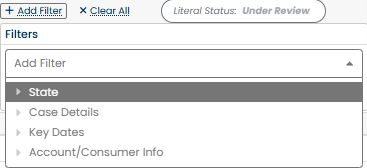
Additionally, certain fields can be used to filter the results to just those cases that are relevant. Click  to select the field and values to filter the results by. Click Apply and repeat for additional fields as needed.
Reassign Cases in Bulk
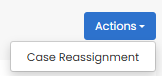
On the page, click on the Actions dropdown and select Case Reassignment to open the screen.
By default, the results table contains all cases with the status of Under Review that the user has permission to act upon. The results may be filtered, if needed, to narrow down the list to only those cases that need reassignment. For example, the Queue or Case Lead fields may be used to hone in on the appropriate subset of cases.
Select the cases to be reassigned by checking the check box next to the Case Number or by clicking the Select All button above the results table. In the lower right corner of the page, the number of cases selected will appear, and the Bulk Reassign button will be activated.

Click the Bulk Reassign button to open the panel. Under Current Details, the queues currently associated with the selected cases will be shown.
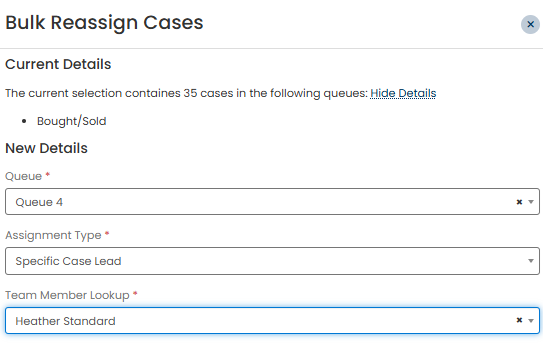
Under New Details, fill out the information for the reassignment.
Under Queue, select the queue the cases should be associated with going forward. If the queue association should not be changed, select the current queue.
Select the Assignment Type for the Queue.
If Specific Case Lead is selected as the Assignment Type, the administrative user will be prompted to use the Team Member Lookup field to select the specific queue member to whom the cases should be reassigned.
Note
In order for a user to be assigned as the new Case Lead, they must belong to the Queue that has been selected, and they must have the Assign Work permission enabled for the Queue.
Click Continue to go back to the page.
Managing Bulk Actions
On the page, the State column will show the processing status of the bulk actions.
Pending indicates that a process is running or waiting for other actions to be completed before running.
Complete indicates that the process has been completed.
Once a Bulk Action process has completed, the details are available to view. Click on the
 icon to open the Bulk Action Results page.
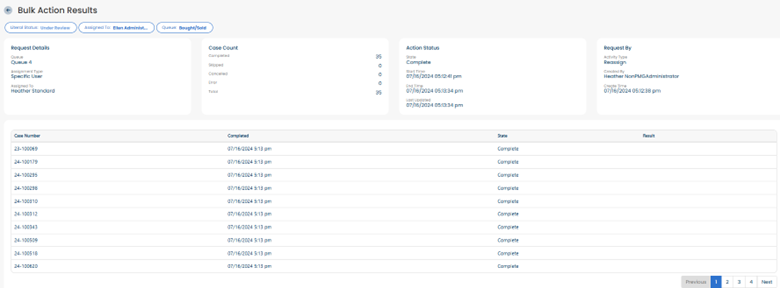
The parameters and other specifics about the Bulk Action are summarized for review. The information shown includes:
When the process was run
Who initiated the action
Which filters were applied to refine the set of cases
How many cases were processed, skipped, or errored
The list of cases that were included
Locate the row on the page representing the bulk process that should be canceled.
Click Cancel under the Action column.
Note
The ability to cancel a Bulk Action is only available if the process has not finished yet. Once completed, the action cannot be canceled, and the cases cannot be reverted to their previous states.
Upon canceling a Bulk Action, the action will only be stopped from running on cases that have not yet been processed. The cases that have been processed cannot be reverted to their previous states.