Administrative users can create and manage Letter Templates for mailed communications that are frequent and applicable to multiple Account Holders. In addition to saving time, the use of Letter Templates enables greater governance of messaging content and helps ensure that communications are consistent across team members and recipients.
Administration Guide
Who Can Use this Feature?
Management and use of this feature is available to all users with an Administrator license, by default. Users with a Standard license who have been granted Letter Templates site rights also have access to this feature.
Permission Scope can be set to Assigned as Template Manager or All Templates. If Assigned as Template Manager is selected, the team member will only have access to the templates where they are designated as the manager. If All Templates is selected, they can access all templates, even those where they are not designated as the manager.
Where Is It Set Up?
To access the page, click on the vertical sidebar menu. Then go to → .
Key Terms
Template Set
A Template Set is simply a way to group together Letter Templates that have a similar theme or subject matter. Use Template Sets to make administration easier when a large number of Letter Templates are being used.
Template Manager
A Template Manager has privileges to edit and copy a Letter Template. By default, all users with an Administrator license are Template Managers, but a Standard license user needs to have the correct permissions enabled to be a Template Manager.
Merge Fields
Merge Fields are placeholder fields that dynamically pull in case-specific data at the time the correspondence is generated to customize it and make it relevant to the recipient. They are grouped into the following categories: Case Details, Checklist Findings, Current Data, Dispute Information, and User Defined Fields (if any have been created).
Merge Fields can be used anywhere in the Letter Body, including the salutation. To use them, click on the
 icon to open the dropdown menu.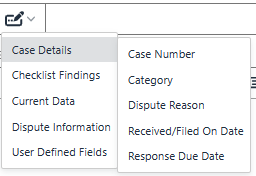
Prerequisites
Important
Before creating your organization's Letter Templates, make sure that the appropriate Letterhead Template or Templates have been set up.
Helpful Tips
Plan Ahead
Make the names of your Letter Templates meaningful so it's easy to understand the intended use. Include date or version references if your organization refreshes the content regularly.
If multiple Letterhead Templates have been created, have a list indicating which templates go together. Each Letter Template must have an associated Letterhead Template. The association is set through a Required field on the configuration panel.
Filtering Results
The page offers Advanced Filters to refine the results list and make it easier to find an existing template. This is particularly helpful in a larger organization or when more than one page of results is returned.
To narrow down the results by one or more keywords, enter a search term in the Text Filter box above the results list. Click Enter.
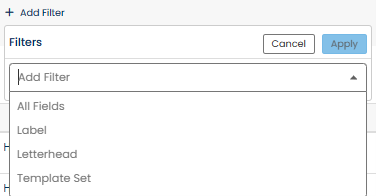
Additionally, certain fields can be used to filter the results to just those Letter Templates that are relevant. Click  to select the field and values to filter the results by. Click Apply and repeat for additional fields as needed.
Leverage Cloning
The Copy Letter Template feature is an effective way to create new Letter Templates that have similar content or structure to an existing template.
Managing Letter Templates
Click the
 button.
A pop-up window will appear. Enter the Template Set name.
Click Save.
Click the
 icon at the upper right corner of the page to open the panel.
Enter a name for the Letter Template.
If you do not want to allow the Letter Template contents to be edited by a team member when it is being used to generate a letter, the template can be made uneditable by clicking the Lock Template at Use icon to move the toggle switch to the right
 position.
If you want to add the new template to a Template Set, select the name of the set from the dropdown.
Note
An existing Letter Template can be associated to a Template Set from the screen by selecting the desired set from the Sets dropdown.

Select the Letterhead Template to be used for the letter.
Enter the Letter Body. The letter content can be formatted using the options provided in the toolbar, including font styling and using bulleted or numbered lists.

The ability to designate a Template Manager is provided. Select the user’s name from the Team Member Lookup and click Add Template Manager.

Click Save.
Click the
 icon to open the panel.
Make any updates needed using the same configuration options available for adding a new Letter Template.
Click Save.
Click the
 icon to open the panel. The new, duplicate version of the copied Letter Template will be shown with the same configuration. By default, the Name of the new template will be the same as that for the copied template, but with "- COPY" appended at the end.
Make any changes needed, including updating the Name. The same configuration options are available as for adding a new Letter Template.
Click Save Copy.
Upon saving a Letter Template, it is automatically enabled for use.
To disable a template, click the
 icon to move the toggle switch to the left
  position.
To enable a template that is disabled, click the
icon to move the toggle switch to the right position.
To delete a Letter Template, click the  icon. This will remove the template completely.