Case Summary Tabs
The tabbed panel contains the bulk of the information, including dispute data values, internal Source of Record data (if an integration has been implemented), and other case-specific information.
Tip
To use the full width of your screen, click the  icon to expand the information panel.
The tabs organize the data into the following groupings:
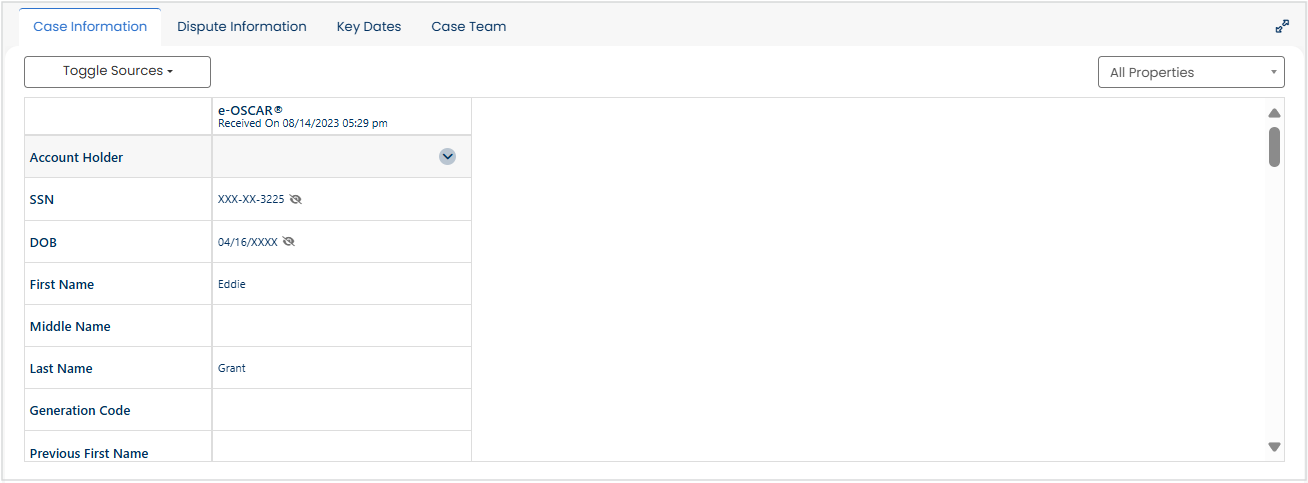
Case Information
The tab contains the dispute data received from e-OSCAR® (or input directly into a Case Form for direct disputes) as well as any correlating System of Record data (if such integration(s) have been implemented).
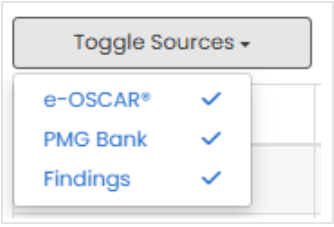
The end-user can control which data sources should be shown by using the Toggle Sources button. Clicking the button opens a list of available sources, and the user can simply check or uncheck the sources to control their visibility.
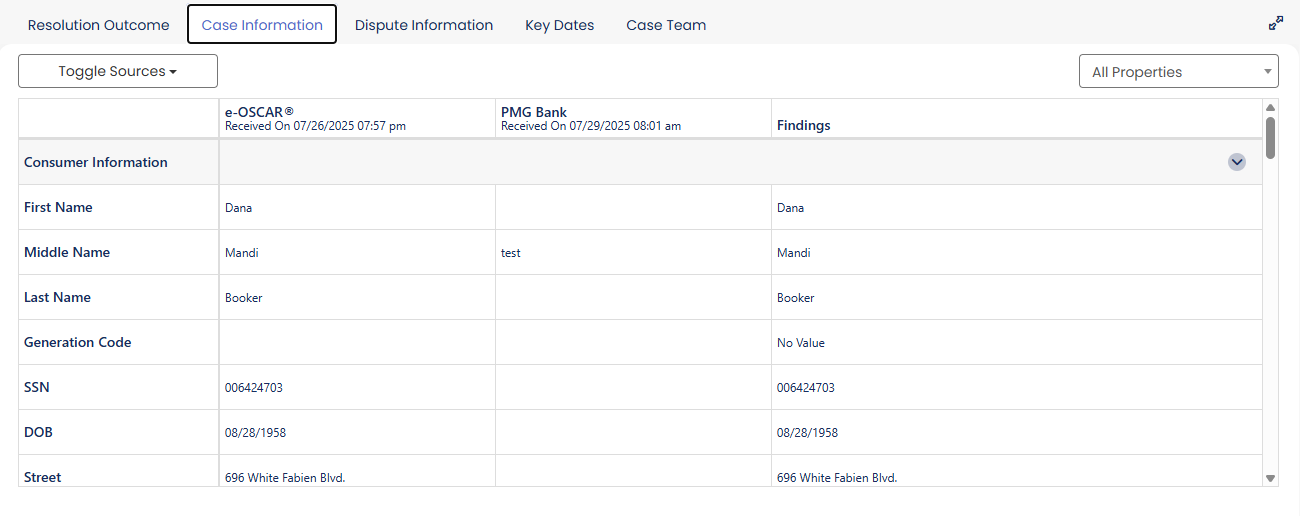
The display mirrors that of a Checklist's Data Compare step, with each data source being shown in a separate column. Once the case's Data Compare step has been completed, the Findings can be displayed as well.
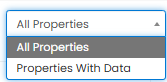
The end-user can also limit the data shown to only those data fields (or rows) containing values. Using the Properties dropdown box in the upper right-hand corner of the panel, select Properties With Data to change the display from the default setting of All Properties.
Other Information
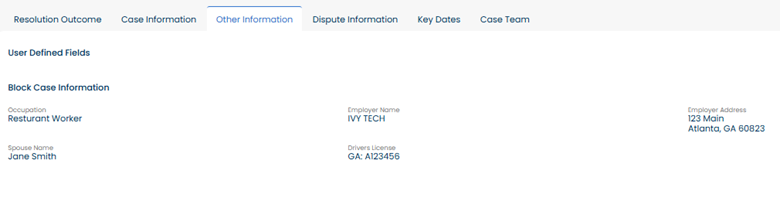
The tab contains any User Defined Fields your organization has created in Case Central® as well as any Block Case Information fields. If no User Defined Fields apply to the case, none will display.
Note
The Block Case Information fields will show only for e-OSCAR® Block Notifications. They will not appear for other case categories.
Dispute Information
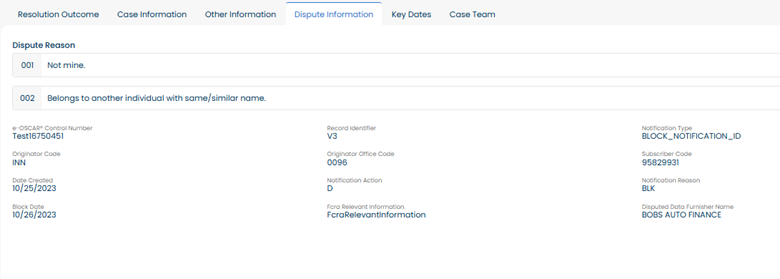
The tab displays information pertaining to the origin of the dispute.
Key Dates
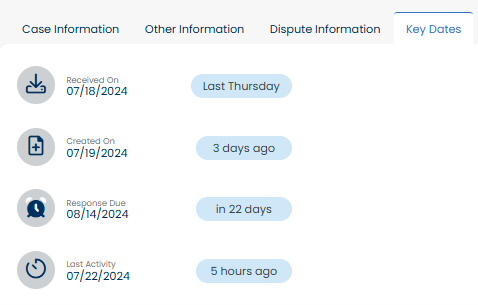
The tab displays important dates relating to the case. Once a case has been resolved, the Resolved On date will appear here.
Note
For e-OSCAR® Block Notifications, Response Due is not applicable, so the field will not be shown.
Case Team
The tab shows information pertaining to the resources working the case. This includes the Queue associated with the case, the Case Lead, any Supporting Resources, and a history of the resources previously assigned to the case.

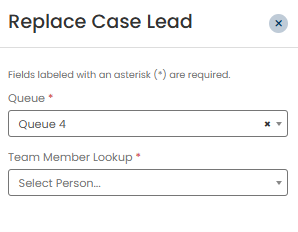
Updates to the Case Team can be made directly from this panel. To change the Case Lead, click on the  icon to open a new panel on the right from which you can select the person who will now assume the role. A different Queue can be selected from here as well.
Additional Supporting Resources may also be added to the case by clicking the  button. A new panel will open, allowing you to select others who will be involved in the case.
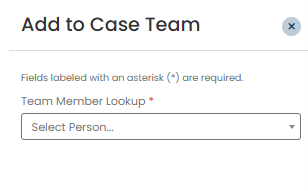
To remove a Supporting Resource from a case, use the  icon to the right of that team member’s name. This will trigger the following message:
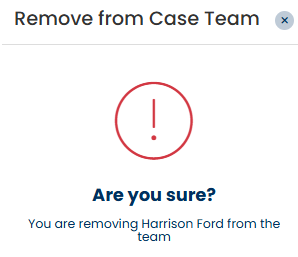
Click Save to complete removal of the case team member. Click Cancel if you made an error and want to keep the individual on the team.
Resolution Outcome
The tab appears only when the Status of the case is Resolved. For cases sent to e-OSCAR®, this tab contains the e-OSCAR® response data and any resolution notes.
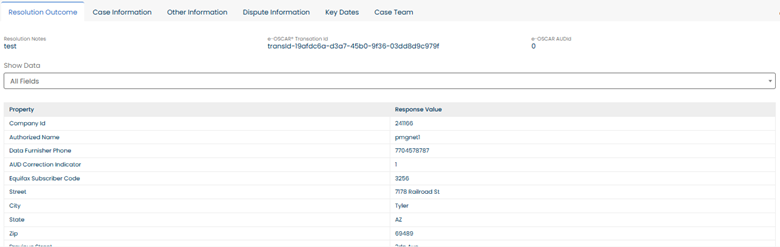
The end-user can select the view they want to see. Using the Show Data dropdown, select All Fields to see all of the data fields related to case resolution, even if the values are blank. Or, select With Data Only to see only those fields containing values.
Note
For cases that are Resolved but for which a response was not sent to e-OSCAR®, the tab will still display the Final Findings values and any resolution notes.