Case Attachments
The Case Attachments section stores all files linked to a case. These may include supporting documents, letters, or images received through e-OSCAR® or uploaded directly by users. Each file is displayed with the following details:
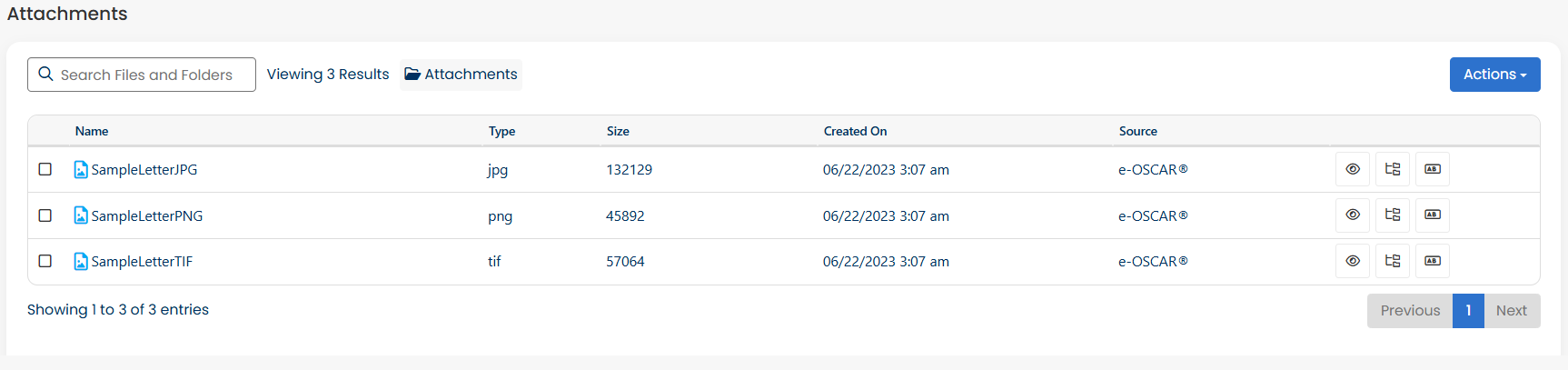
Name – the file name
Type – the file format (e.g., JPG, PNG, TIF)
Size – the file size in bytes
Created On – the date and time the file was added
Source – the system or channel where the file originated, such as e-OSCAR®.
Attachment Actions
Click on the  button to:
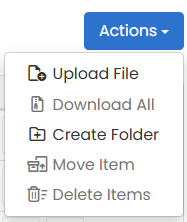
Upload File – add a new attachment to the case.
Download All – download all case files at once.
Create Folder – organize attachments into folders.
Move Item – relocate a file to another folder.
Delete Items – remove one or more attachments.
File Actions
Each file in the attachment list includes icons for managing that individual file:
Click
 to open a quick preview of the file.
Click
 to move the file into another folder.
Click
 to rename the selected file.
Click
 to delete the file.
Note
Only the files that you have uploaded yourself can be deleted. Default files (such as those coming through e-OSCAR®) cannot be deleted.
Searching for Files and Folders
You can also search for specific files and folders using the search bar at the top. Simply type in part of the file or folder name, and press enter. Matching results will appear.
