Report Center
is the portal page for reporting functionality in Case Central®, also containing the library of existing reports. By leveraging the tools and functionality available, users can create custom reports to track case progress, analyze procedures, and optimize decision-making.
Administration Guide
Who Can Use this Feature?
Users with an Administrator or Standard license can access and manage Report Center.
Where Is It Set Up?
To access the page, click the Reports icon on the vertical sidebar menu. Then, from the panel click on .
Helpful Tips
Filtering Results
Upon opening the page, a list of existing reports and a summary of their key details are shown. To narrow down the results by one or more keywords, enter a search term in the Text Filter box above the results list. Click Enter.
Additionally, certain fields can be used to filter the results to just those reports that are relevant. Click  to use the toggle switches to narrow down the results by certain report attributes. Alternately, select Data Set or Fields to filter the results by the data contained within the reports, and click Apply. Repeat for additional fields as needed.
Export a Report
Open the View of the report and click on the
 dropdown. Select the Export Data option to open the window.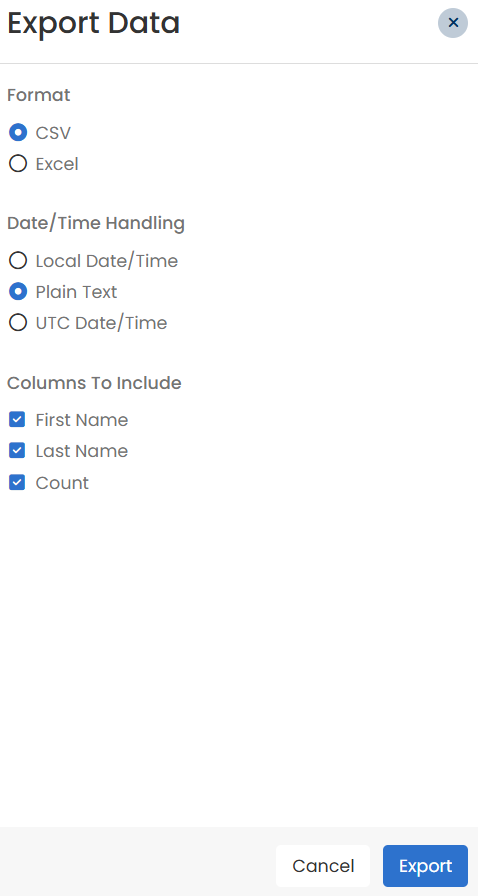
Select the Format of the export: CSV or Excel.
Choose the Date/Time Handling option to specify how the dates will be formatted when exported.
Local Date/Time
Plain Text
UTC Date/Time
Select the columns from the report to include in the export. By default, all columns are selected.
Click Export.
A pop-up will appear asking if you want to Open, Save As, or Save the file.