Administrative users can create and manage Letterhead Templates for letters generated by the system. Letterhead Templates allow users to generate letters with the appropriate Letterhead so they do not need to be printed on letterhead stock.
Administration Guide
Who Can Use this Feature?
Management and use of this feature is available to all users with an Administrator license, by default. Users with a Standard license who have been granted Letterhead Template site rights also have access to this feature.
Permission Scope can be set to Assigned as Template Manager or All Templates. If Assigned as Template Manager is selected, the team member will only have access to the templates where they are designated as the manager. If All Templates is selected, they can access all templates, even those where they are not designated as the manager.
Where Is It Set Up?
To access the page, click on the vertical sidebar menu. Then go to → .
Key Terms
Template Manager
A Template Manager has privileges to edit and copy a Letterhead Template. By default, all users with an Administrator license are Template Managers, but a Standard license user needs to have the correct permissions enabled to be a Template Manager.
Helpful Tips
Template Names
Make the names of your Letterhead Templates meaningful so it is easy to understand its intended use. Include date or version references if your organization refreshes the content regularly.
Letterhead Template Requirements
Letterhead Templates must be uploaded as a Microsoft Word document and must contain a [Body] tag that will tell Case Central® where to place the contents of the letter.
A sample Letterhead Template document can be downloaded by clicking the
 icon on the screen.
Managing Letterhead Templates
Click the
 icon at the upper right corner of the page to open the panel.
Enter a name for the Letterhead Template.
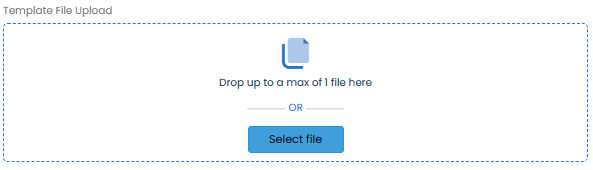
Upload the Letterhead document in the box. The file can be dragged and dropped where indicated, or the Select File button may be clicked to browse for the file.
The ability to designate a Template Manager is provided. Select the user’s name from the Team Member Lookup and click Add Template Manager.

Click Add Template.
Click the
 icon to open the panel.
Update the template Name if desired.
If needed, preview the existing Letterhead Template by clicking the
 icon. It can also be downloaded by clicking the
  icon.
icon.To update the Letterhead Template file, click Yes.

The Template File Upload box will appear. Drag and drop the new file you want to use, or click the Select File button to browse for it.
Click Update Template to save any changes.
Click the
 icon to open the panel. The new, duplicate version of the copied Letterhead Template will be shown with the same configuration. By default, the Name of the new template will be the same as that for the copied template, but with "- COPY" appended at the end.
Update the template Name if desired.
If needed, preview the existing Letterhead Template by clicking the
icon. It can also be downloaded by clicking the icon.To update the Letterhead Template file, click Yes.
The Template File Upload box will appear. Drag and drop the new file you want to use, or click the Select File button to browse for it.
Click Save Copy.
Upon saving a Letterhead Template, it is automatically enabled for use.
To disable a template, click the
 icon to move the toggle switch to the left
  position.
To enable a template that is disabled, click the
icon to move the toggle switch to the right position.
To delete a Template, click the  icon. This will remove the template completely.