Sources of Record
An organization may have multiple Sources of Record depending on how many internal databases, applications, and programs are utilized to hold proprietary account information on their customers or third parties on whom they furnish data. Some databases may be considered the system of record for certain information, while others serve as the official record source for other information.
Case Central® supports the use of more than one Source of Record, so setting up rules to determine which data source is the most appropriate for a given case investigation is helpful. Source of Record Rules may be configured by an administrative user with the appropriate permissions.
Administrative users can create and manage rules that govern which Source of Record should be associated with a particular case and used to compare with the information contained in the dispute.
These Source of Record Rules use business logic to evaluates the values contained in various data fields, including Case Category, Dispute Code or Dispute Reason, Queue, Account Type, Account Status, and other case details information.
This feature also allows administrative users to set a default Source of Record for the system, but then specify under what conditions other record sources should be used.
Source of Record Rules are set up as a sequence of one or more decision steps, each evaluating a data point from the case to determine if the value meets the defined criteria before proceeding to the next step. When a rule is met, it is applied and assigns the appropriate Source of Record to the case.
Administration Guide
Who Can Use this Feature?
Management and use of this feature is available to all users with an Administrator license, by default. Users with a Standard license who have been granted Source of Record Rules site rights also have access to this feature.
Where Is It Set Up?
To access the page, click on the vertical sidebar menu. Then go to → .
Default Association
Associating a Source of Record to a Case by Default
Default Associations are applied when none of the configured routing rules matches the details of the case. By designating a default Source of Record, a Case Lead won't have to select one manually. This is more efficient and avoids the possibility of the wrong Source of Record being selected.
On the other hand, if manual selection is preferred, the No Source of Record option can remain selected.

Set a Default Association
Click
 next to Set Source of Record to open the panel.
From the dropdown, select the name of the Source you want to set as the Default. Only Sources of Record that have been previously added as Sources will appear in the dropdown list and be available for selection.
Click Save,
Helpful Tips
Plan Ahead
Before setting up your organization's Source of Record Rules, plan out the business logic that should be used to determine the appropriate Source of Record for a case. Define the rules before creating them in the system.
If you do happen to mistakenly create or delete a decision step, use the  buttons to go back a step or forward again.
Don't Forget to Publish
Changes made to Source of Record Rules are saved in real time but are not live until they have been published.
If a rule has been added but isn't fully configured, the  icon will appear on the decision step. Case Central® will not allow improperly configured Source of Record Rules to be published.
Leverage Migration Tools
Case Central® makes it easy to move Source of Record Rules settings from one environment to another. Use the Export and Import actions to migrate a published configuration from Dev to Test to Prod or whichever direction you need.
The required format for Source of Record Rules configuration documents is JSON.
Managing Source of Record Rules
Click the
 icon on the Start tile to create a new, blank decision step.
Click anywhere on the new step to open the configuration panel. A Description field is provided, but optional.
Define the business logic.
Select the data field to be evaluated using the When dropdown.
Select the values that the make the rule true.
Example 1. Create a Source of Record RuleCases that have different Categories may have different Sources of Record. If you want to distinguish disputes that come in directly from a letter rather than-OSCAR®, a rule identifying when the Case Category is Letter Received could be created.
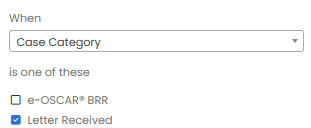
Select the appropriate source that the matching cases should use by choosing the appropriate one from the Use Source of Record(s) dropdown.
Click Save.
To create a rule that is applied to the cases when the previously created rule is false, click the
icon on the Start tile again to create a new, blank decision step on a new path from Start.Click anywhere on the new step to open the configuration panel. A Description field is provided, but optional.
Define the business logic.
The data field that was chosen for the first path will now be pre-selected and grayed out for the When field.
Select the values that the make the rule true for this new path. The values that were already used in the previous path will no longer be available for selection.
To make a rule that will apply a different Source of Record to any cases that have not met the defined criteria for the selected data field, choose Everything Else.
To refine the decision logic further, create additional rules by adding new decision steps that follow an existing step. Data fields previously selected for evaluation from the When dropdown will not be available for selection on subsequent paths.
Publish Rules
After creating or updating the Source of Record Rules, click Publish to make the new rules live in the system.
Note
If changes have been made but not published, a reminder will be shown.

View Published Versions
Click the
 icon to see the menu.
Select Show Published Versions to see a list of previously published Source of Record Rules.
Click the
 icon to download them.
To return to the rules creation screen, click the
icon again and select Show Edit View.
Export
Click the
icon to open the menu and select Export.You will receive a message prompting you to either open or save the file.
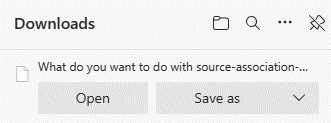
Save the file if you plan on importing it into another Case Central® environment later.
Import
Click the
icon to open the menu and select Import.A panel will open prompting you to select the JSON file that you wish to import into the system.
Publish the rules after they have been imported in order for them to be live in the system.
To delete a Source of Record Rule, click the  icon. This will remove the decision step.