Case Tracker
The Case Tracker is the central workspace where you can view, search, and manage all cases in one place. Within the tracker, you can quickly narrow down cases using text or field-based filters, organize results with sorting options, and open case details directly from the view. Overdue and bookmarked cases are highlighted with visual indicators, making it easy to identify priority items. You can also save your preferred filter and view combinations, allowing you to return to the exact setup you use most often.
Case Views
The Case Tracker provides three viewing formats - Calendar, Card, and Table - to help you organize and review cases in the way that best fits your workflow. You can switch between views using  on the toolbar.
Card View
The Card View displays each case as an individual card with a concise summary of key details.
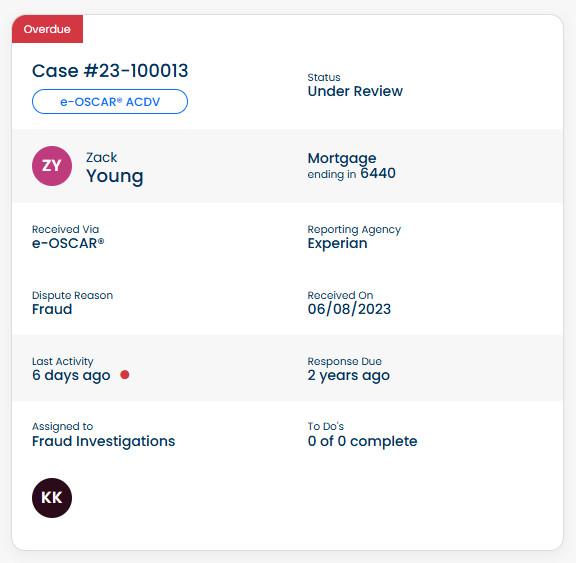
Case cards show:
Case ID
Case Category
Status
Account Holder Name
Received via
Dispute Reason
Last Activity
Assigned to
Reporting Agency
Received On
Response Due
To Do's
Clicking on a card opens the full case details.
Calendar View
The Calendar View displays cases according to their key dates, such as the Response Due Date. This format makes it easy to track deadlines, upcoming tasks, and overdue items.
Each case appears as an entry on its corresponding due date. Overdue cases are highlighted for quick visibility. You can click a case entry directly from the calendar to open its details.
Table View
The Table View presents cases in a structured, column-based format - ideal for comparing multiple cases side by side.
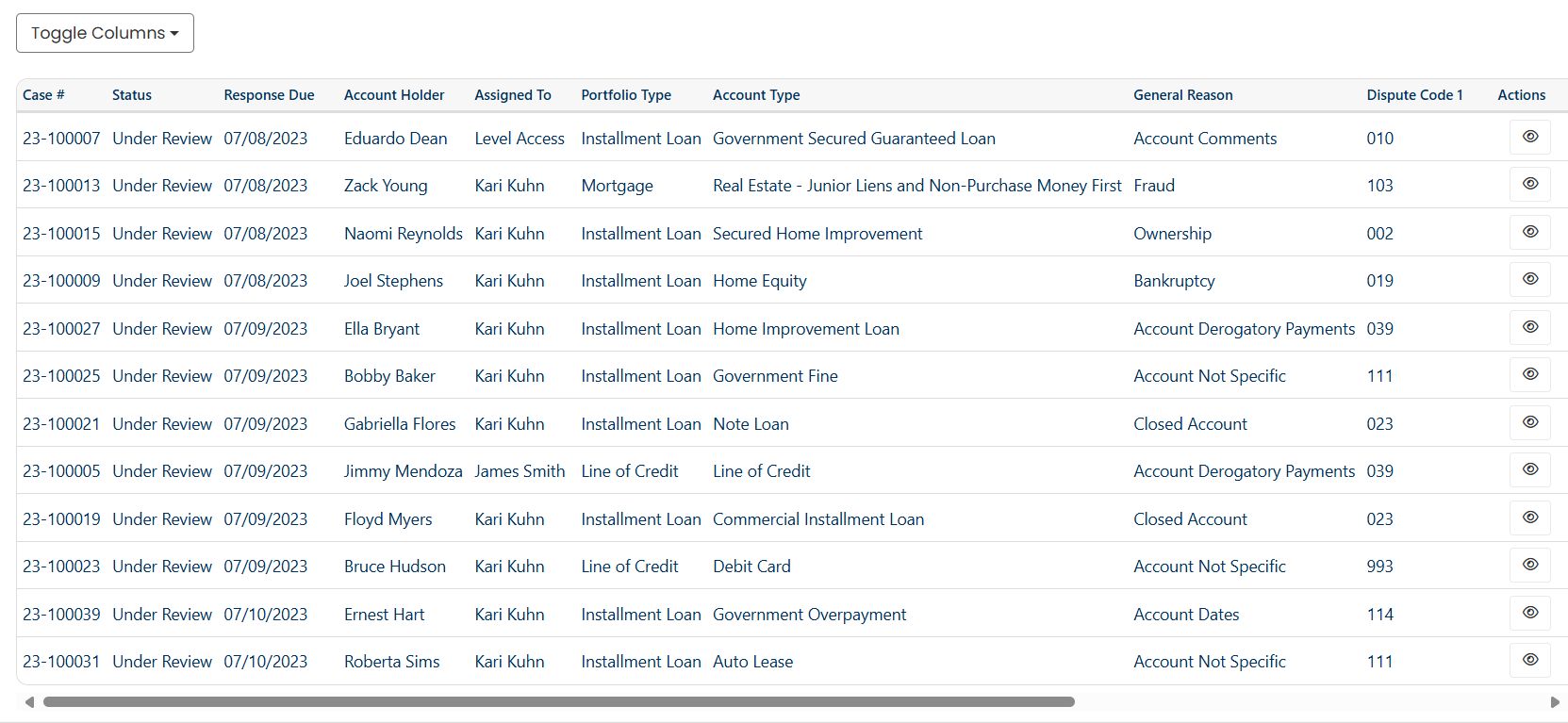
Columns include:
Case #
Status
Response Due
Account Holder
Assigned To
Portfolio Type
Account Type
General Reason
Dispute Code 1
Dispute Code 2
Dispute Code 3
CRA
Submission Method
Received
Last Activity
You can sort cases by any available column (e.g., Response Due) and scroll horizontally to view all fields. Click on the  icon in the Actions column to open the case.
Case Filters
Filters help you narrow down the cases displayed in the Case Tracker. You can apply a quick Text Filter or add detailed Field-Based Filters to refine results.
Text Filter
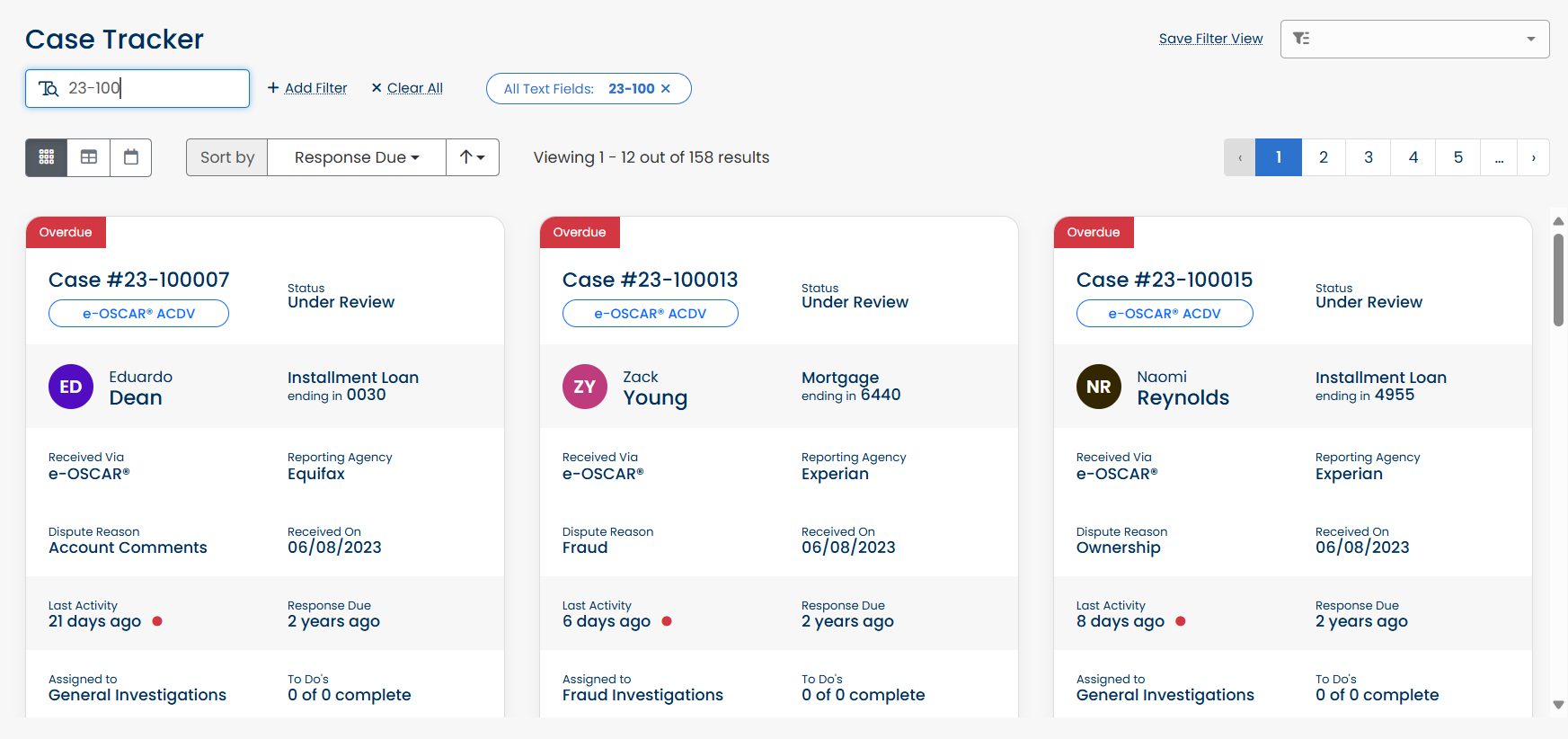
The Text Filter is located at the top of the Case Tracker. Enter keywords such as Case Number, Account Holder Name, or Portfolio Type. Results update automatically to match your search terms. Use this for quick lookups without setting multiple conditions.
Field-Based Filters
For more precise filtering, click  . This opens a list of filter categories that let you drill down into cases based on specific attributes. You can select one or more filters at the same time. Once a filter is selected, possible values appear for you to choose from.
The available filter categories are:
State
Case Details
Key Dates
Account/Consumer Info
Applying Filters
Click
 .
.Select a filter category (e.g., Case Details).
Choose a specific filter (e.g., Status).
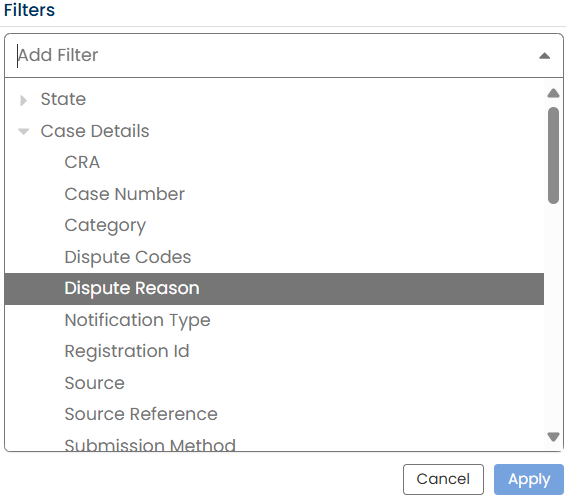
Select relevant values from the list.
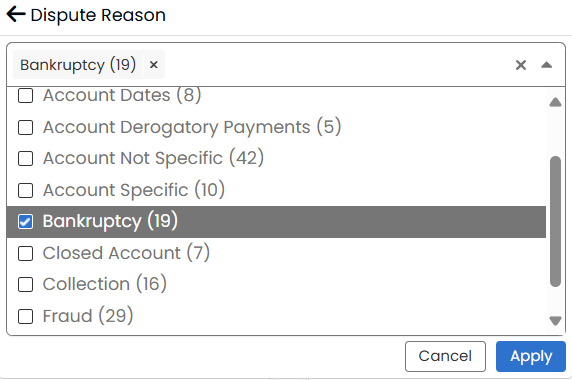
Click Apply to filter results.
Save Filter Views
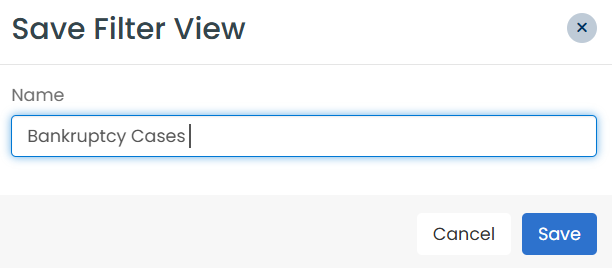
After applying filters, you can click Save Filter View to preserve the setup for future use.
Enter the filter name in the modal window and click Save.
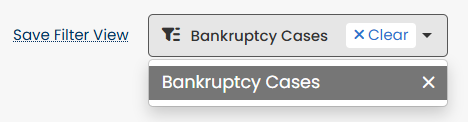
Saved views can be accessed from the filters dropdown.
Status Ribbons
Status ribbons are visual indicators that highlight the current state of a case on the page. Available statuses include:
Overdue – The case has passed its due date without resolution.
Resolved – The case has been manually marked as resolved.
Auto-Resolved – The case was closed automatically by the system based on an auto-resolution rule.
Bookmarked
Escalated